
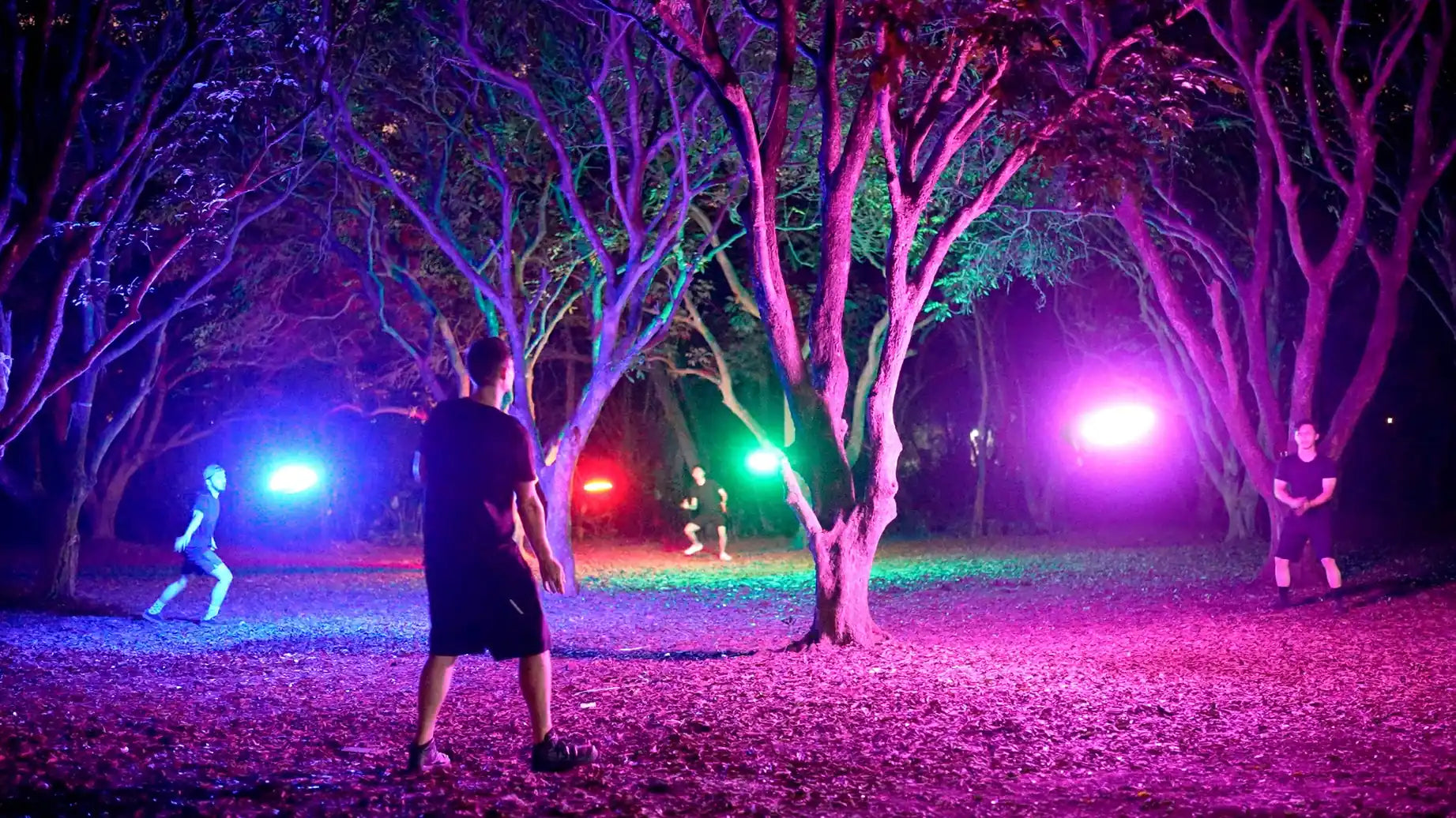
The Ultimate Guide to TOSY Flying Disc (LED & RGB): Setup, Controls & Pro-Tips
So you just unboxed your brand-new TOSY Flying Disc, but you aren't quite sure how to activate it or customize the light modes? Don't worry! This comprehensive guide is compiled directly from the official manufacturer's user manual to help you master your ultra-bright disc in just a few minutes.
1. Quick Overview: Which Model Do You Have?
The TOSY Ultimate Disc is available in two distinct high-performance models engineered to light up the night sky:
- LED Model (Standard): Equipped with 36 LEDs, making it 100x brighter than any regular flying disc. It features 4 adjustable brightness levels and smart timer settings.
- RGB Model (Premium): Features a massive setup of 108 LEDs (36 RGB packages of 3 LEDs each) capable of producing 16 Million Colors. It is 200x brighter than standard discs and includes extra buttons to customize color effects (Styles) and select solid single colors.
2. The Most Important Step: First-Time Activation (Unlocking Your Disc)
CRUCIAL NOTE: For transportation safety and retail display purposes, TOSY ships every disc in "Try-me" or "Locked" mode. If you do not unlock it, the disc will shut off almost instantly, which causes some users to mistake it for a defective battery.
How to unlock your new disc is incredibly simple:
- Press any button on the underside of the disc.
- Throw or spin the disc so that it flies at least 15 feet (or 5 meters) into the air.
- Once thrown at this distance, the "Try-me" function automatically deactivates. From this point onward, the light will automatically start every single time you throw or spin the disc and stay on as per your selected Timer mode.
3. How to Navigate and Change Modes (Button Control Rules)
The rubber buttons on the underside of the disc follow a universal rule for quick adjustments:
- Press a button once: Goes up to the next level/setting.
- Press a button twice: Goes back to select your preferred previous level.
Available Modes on Both LED & RGB Discs:
- BRIGHTNESS Modes Button: Cycles through 4 levels from 0 to 3 (No Light - Turns off LEDs completely for daytime play; Dim - Soft glow; Bright - High visibility; Super - Maximum brightness). Note: Battery life values are rated based on playing at the B1 (Dim) setting.
- TIMER Modes Button: Determines how long the disc stays lit after flight (Game - Continuous play for matches; 7" - Shuts off after 7 seconds; 8" - Shuts off after 8 seconds; 120" - Stays lit for 120 seconds, perfect for finding your disc in dark bushes).
Exclusive Modes ONLY on the RGB Disc:
- STYLE Modes Button: Cycles through 4 stunning visual effects (Mono Color - Solid single color; Dynamic - Fluidly shifting gradients; Rainbow - Vibrant multicolor trail; Random - Unpredictable patterns on every throw).
- COLOR Button: When your disc is running on solid color mode (Mono Color), simply click this button to cycle through and select your favorite custom LED color.
4. Recharging Your Disc & Understanding Indicator Lights
Keeping your disc powered is simple with the modern built-in charging infrastructure:
- Battery Indicator Light Status: When fully charged, the light glows Green. When the battery runs low, the light turns Red.
- While Charging: The Battery Indicator Light will blink continuously. Once the disc reaches a full charge, the light stops blinking and remains solid Green.
- Charging Time: It takes just 45 minutes to fully charge, delivering up to 3,000 throws at B1 and T1 modes.
- How to Recharge: Use the provided USB-C cable to connect the charging port on the disc to a computer's USB port or a standard USB wall charger.
- Quick Tip from TOSY: Simply use your fingernail to easily pry open the rubber lid of the charging port. There is absolutely no need to unscrew the lid.
5. How to Turn It Off & Quality Maintenance
- Automatic Shutoff: The TOSY Flying Disc is smart—it will automatically turn off after 10 minutes if it does not move. You do not need to manually turn it off after every casual session.
- Manual Shutoff: If you want to force-shut it down before packing it away, press and hold any of the 4 buttons on the disc for 3 seconds.
- Quality Maintenance: The TOSY Ultimate Disc is designed to withstand substantial impacts just like any regular disc. However, to maximize the lifespan of the internal electronics, it is highly recommended to throw the disc on soft ground or grass only, and avoid harsh, high-velocity impacts against hard surfaces like concrete or asphalt.
Frequently Asked Questions
Why does my new TOSY Flying Disc shut off almost immediately after throwing?
Your disc is still in factory "Try-me" mode. For transportation safety and retail display purposes, TOSY ships every disc locked. To unlock it, simply press any button on the underside and throw or spin the disc at least 15 feet (5 meters) into the air once. The try-me mode will automatically deactivate permanently, and the LEDs will stay lit according to your selected timer mode on every subsequent throw.
Can I play with the TOSY Flying Disc during the day without draining the battery?
Yes, you can turn off the LEDs completely for daytime play. Using the Brightness Modes button, you can cycle through the levels down to level 0 (No Light), which completely deactivates the lights while maintaining the disc's official weight and aerodynamic flight balance. For more customization tips, check out our Complete TOSY Flying Disc User Guide.
How do I know when my TOSY Flying Disc battery is fully charged?
The battery indicator light will glow solid green once fully charged. While charging via the USB-C port, the indicator light will continuously blink; it stops blinking and remains solid green when the 45-minute charging cycle is complete. When playing, a red indicator light warns you that the battery is running low.
How many throws can I get on a single battery charge?
A single full charge delivers up to 3,000 throws. This maximum performance is achieved when running on the B1 (Dim) brightness and T1 timer settings. Heavier usage on super brightness levels or longer timer modes may slightly reduce total throw counts between charges.
What is the difference in brightness between the standard LED model and the RGB model?
The standard LED model features 36 LEDs and is 100x brighter than regular discs, while the RGB model features 108 LEDs and is 200x brighter. The RGB version also introduces 16 million colors, dedicated Style modes for shifting gradients, and a Color button to lock in your favorite solid shade. For a deeper model comparison, read our TOSY LED vs. RGB Buying Guide.
Do I need to manually turn off the disc after a game session?
No, the disc features an automatic shutoff after 10 minutes of no movement. However, if you want to pack it away immediately, you can force a manual shutdown by pressing and holding any of the four rubber buttons on the underside for 3 seconds.
How do I open the USB-C charging port without damaging the rubber lid?
Simply use your fingernail to gently pry open the rubber lid. There are no screws or special tools required to access the charging port. For maintenance longevity, ensure the rubber lid is securely sealed back in place before playing in damp grass.
Can I play with the TOSY Flying Disc on concrete or asphalt surfaces?
It is highly recommended to throw the disc on soft ground or grass only. Although the TOSY disc is engineered with high-impact durability to withstand standard catches, repeated high-velocity impacts against abrasive hard surfaces like concrete or asphalt can scuff the plastic shell and stress the internal electronic components.
Share:
TOSY Flying Disc User Guide
Top 10 Christmas Gift Ideas for Kids and Teens in 2026